

How a Browser Works: A Beginner-Friendly Guide to Browser Internals
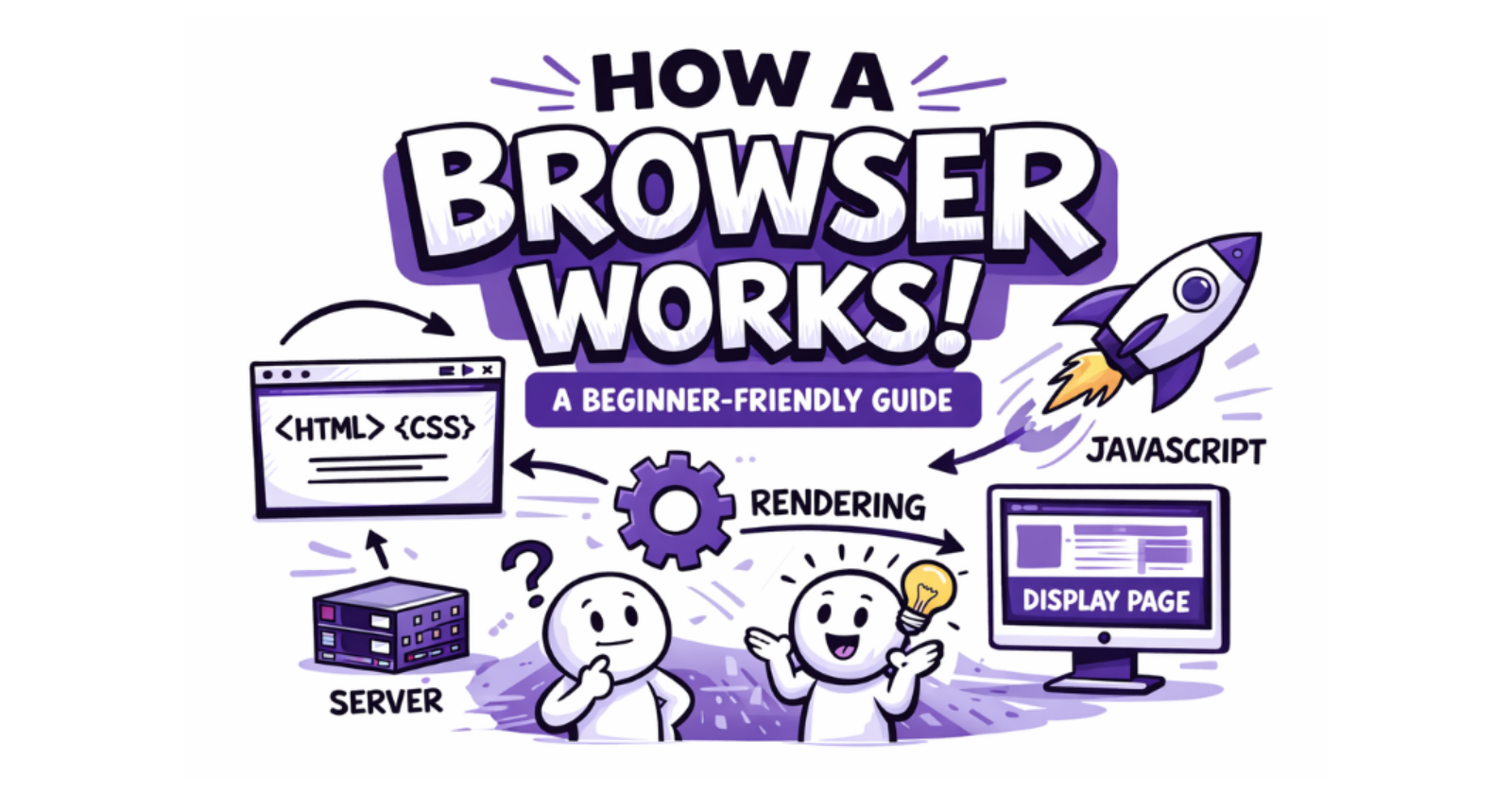
What happens after you type a URL and press Enter? You open a browser, type a website address, press Enter, and almost magically a new webpage renders. Text, images, buttons, layouts, and colors all show up in less than a second. But behind this simple action, your browser performs many coordinated steps, involving networking, parsing, calculations, and rendering.
This article walks you through how a browser works internally, step by step, in a visual, story driven, beginner friendly way.
What a browser actually is
A browser is not just a window to the internet. Think of it as a mini operating system for the web.
A browser talks to servers over the internet, downloads files (HTML, CSS, JavaScript, images), renders them into a visual page and also handles user interaction (clicks, typing, scrolling). In short, a browser turns code into pixels.
Main parts of a browser
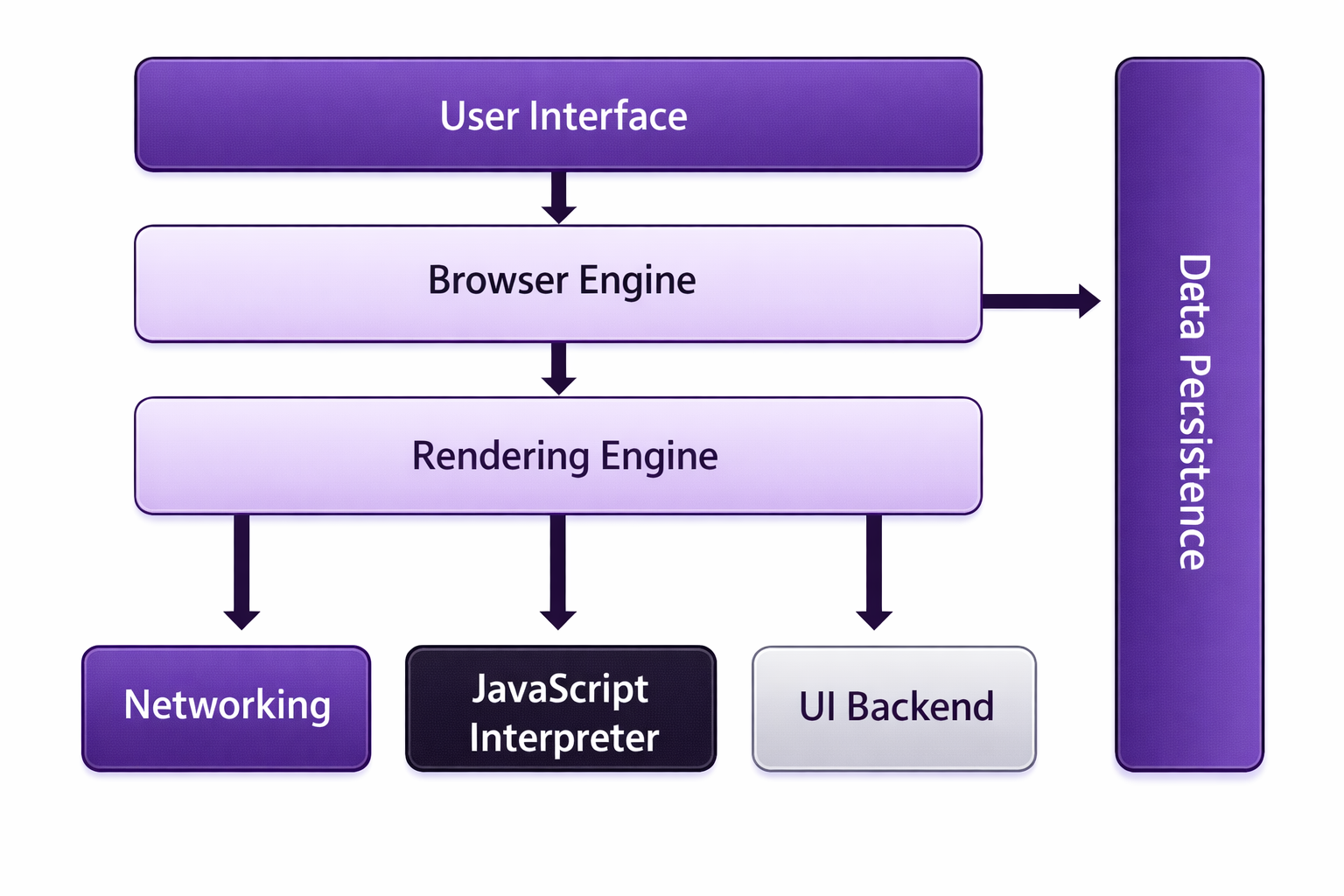
At a high level, a browser is made of multiple cooperating components:
Core parts include:
User Interface (UI) – what you interact with
Browser Engine – coordinates everything
Rendering Engine – turns code into visuals
Networking – fetches resources from servers
JavaScript Engine – executes JavaScript
Data Storage – cookies, cache, local storage
You don’t need to master each part. Just understand how they work together.
User Interface
The User Interface is the visible part of the browser:
Address Bar
Address bar is a input bar in the browser where you type the URL of your favorite site. Example: Google.com
Buttons
Back/Forward Buttons
As the name suggests, back button lets you go to previous webpage and if you want to get back to latest webpage use you use forward button.
Refresh Button
Refresh button lets you reload a page. Helpful if a page gets stuck or some processes not working properly.
Tabs
Tabs help you to access multiple webpages. You can easily switch between various pages in one browser window.
Bookmarks
Bookmarks helps you to save your favorite websites in one place so that you can access them any moment. It makes those sites easily accessible and you don’t have remember all URL names.
Browser Engine vs Rendering Engine
| Feature | Browser Engine | Rendering Engine |
| Behavior | Acts like a manager | Acts like an architect |
| Work | It decides when to load a page, when to refresh, and which engine should do what. | It converts HTML and CSS into something you can actually see. |
Think of it like, Browser Engine is a project manager & Rendering Engine is a builder.
Networking: how a browser fetches HTML, CSS, JS
Once you press Enter, the browser figures out the server’s address (using DNS) and sends a request over the internet. And then browser receives files in response.
These files usually include:
HTML for structure
CSS for styling
JavaScript for functionality
Images, fonts, videos for user experience
HTML parsing and DOM creation
Now comes a critical step parsing HTML. Here parsing means reading text and converting it into a structured meaning. The browser reads HTML top to bottom, breaking it into nodes and organizing them into a tree called the DOM.
What is the DOM?
Document Object Model (DOM) is a tree representation of your HTML structure.
HTML can be nested so tree representation helps in parent-child relationship.
Example:
<body>
  <h1>Hello</h1>
  <p>Welcome</p>
</body>
CSS parsing and CSSOM creation
Cascading Style Sheet (CSS) is handled separately. Your browser reads CSS files then parses rules and builds another tree called the CSSOM.
CSSOM (CSS Object Model):
Represents styles
Knows which rules apply to which elements
Resolves conflicts (like multiple rules for the same element)
Example:
body {
    background-color: red;
    padding: 10px;
}
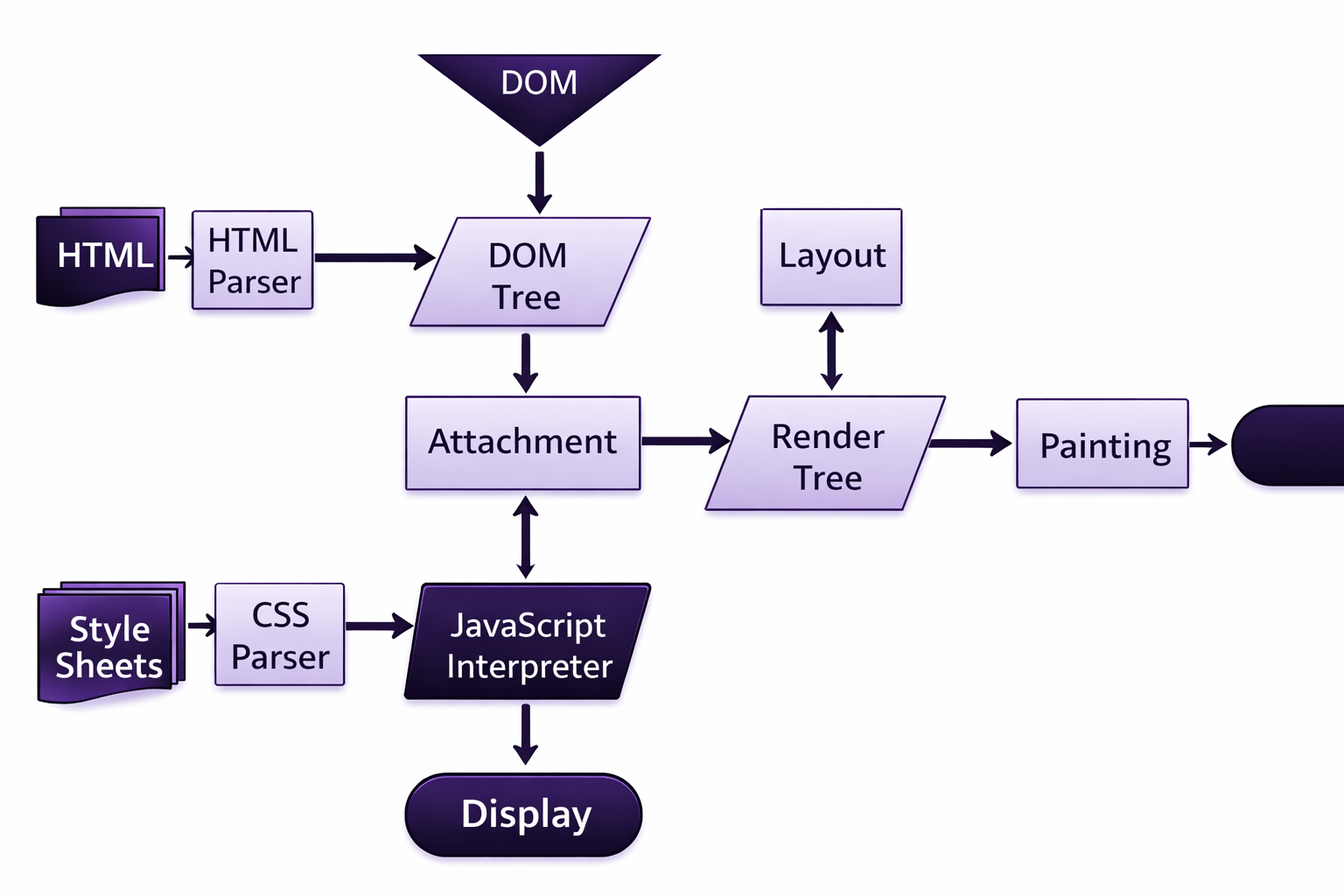
How DOM and CSSOM come together
The browser now combines:
DOM (structure)
CSSOM (styles)
From these, it creates the Render Tree.
Remember that only visible elements appear in the render tree and hidden elements are skipped. Each node has layout and style information. This is the first structure that directly leads to pixels.
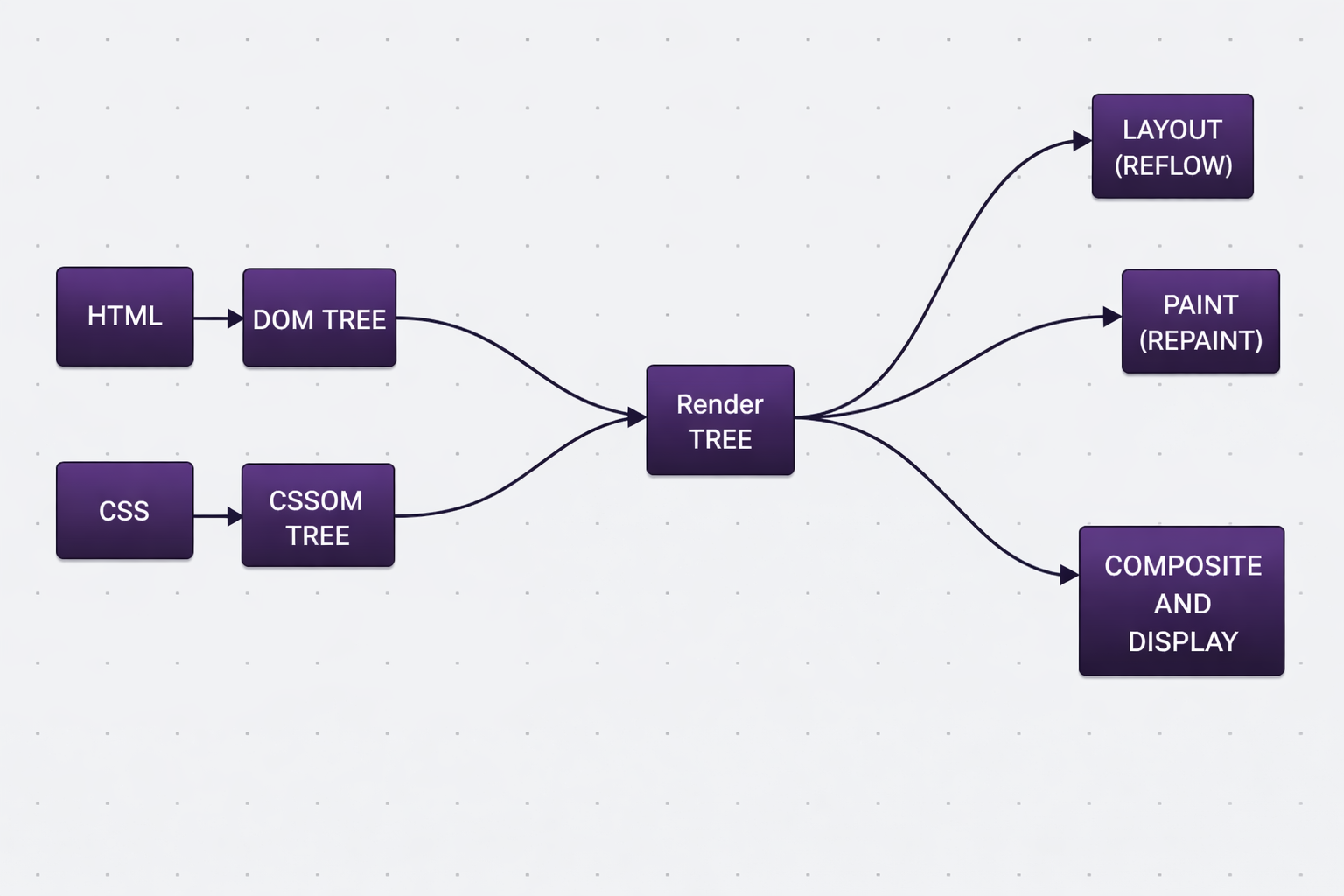
Layout (reflow), painting, and display
Layout (Reflow)
Calculates position and size of each element
Determines where boxes go on the screen
Depends on screen size, fonts, margins, etc.
2. Painting
Converts layout into drawing instructions
Colors, text, borders, shadows, images
3. Display
Paint instructions are sent to the screen
Pixels light up
You see the webpage
Very basic idea of parsing (using a simple math example)
Parsing sounds scary, but you already do it daily.
For example:
$$2 + 3 × 4 = 2 + 12 = 14$$
Your brain doesn’t read it as a flat sentence. It understands structure that multiplication first and then addition.
That structure can be drawn as a tree:
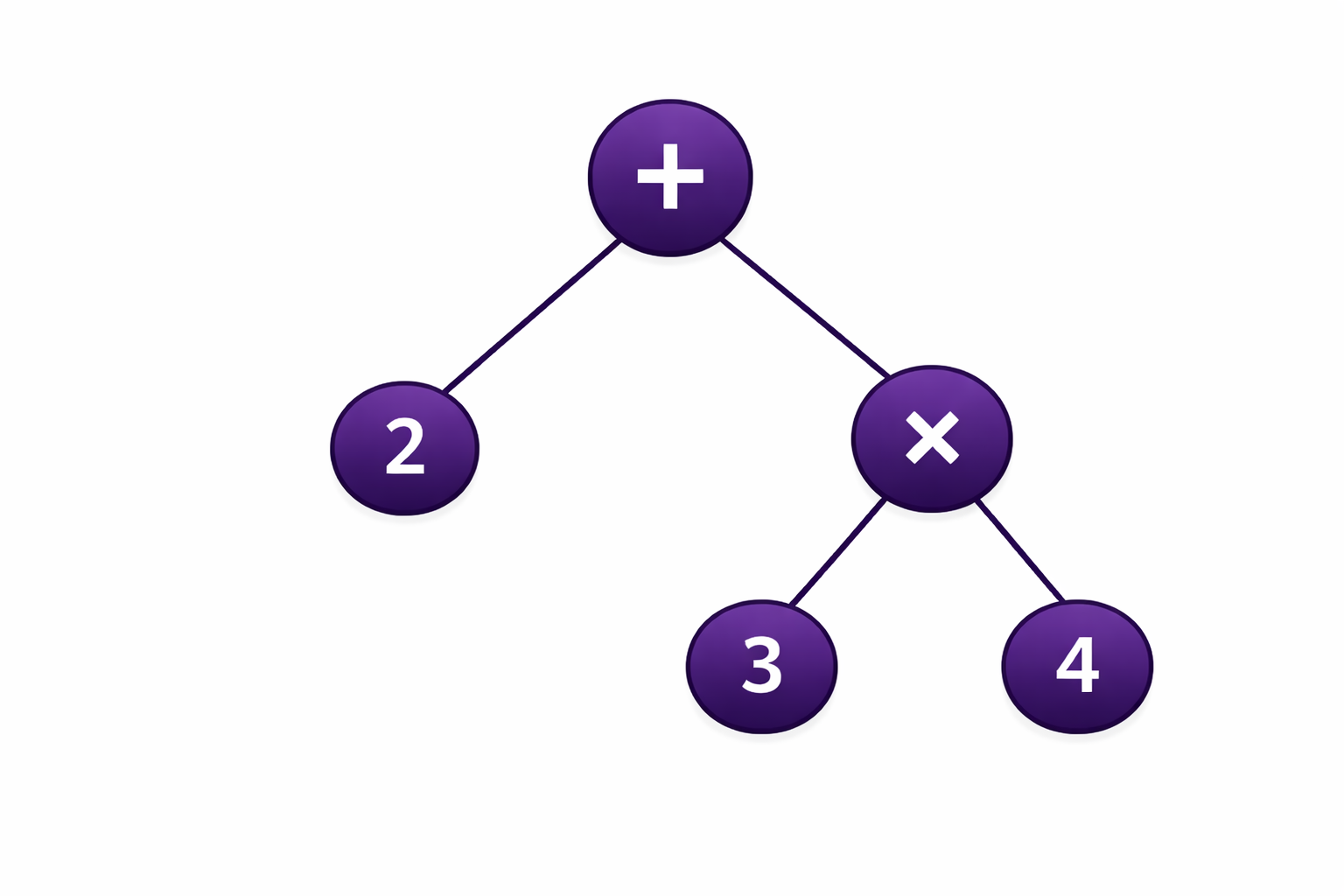
That’s exactly what the browser does with HTML and CSS but with tags instead of numbers.
Conclusion
To sum up, you type a URL and hit enter. Browser fetches resources. HTML converts into DOM & CSS converts to CSSOM. From DOM & CSSOM we get the render tree. Layout calculates positions and painting draws pixels. And finally, web page renders on screen.
If this feels like a lot, that’s fine. You don’t need to remember every term.
Remember the flow:
Code → Structure → Style → Layout → Pixels
As a developer, understanding this flow helps you write better HTML and CSS, avoid performance issues, debug layout, and rendering problems.
In the end, browser is just a very fast & organized translator between code and visuals.


